 I Have Fixed a Longstanding Issue with Orbitiny’s File Manager (Qutiny) – An Issue with the File SearchJune, 2026Orbitiny’s Device Manager Theming Upgrade CompletedJune, 2026Orbitiny’s Search Utility is Now Useful – New Features + Dynamic Theming CompletedJune, 2026Introducing Qutiny’s Brand New Light and Modern ThemeMay, 2026An Update on Wayland Support (Coming After Pilot 11) / Orbitiny’s Wayland Future is River WM + New Control Panel and Light Theme ScreenshotsMay, 2026
Portable, Modular, Functional and Innovative
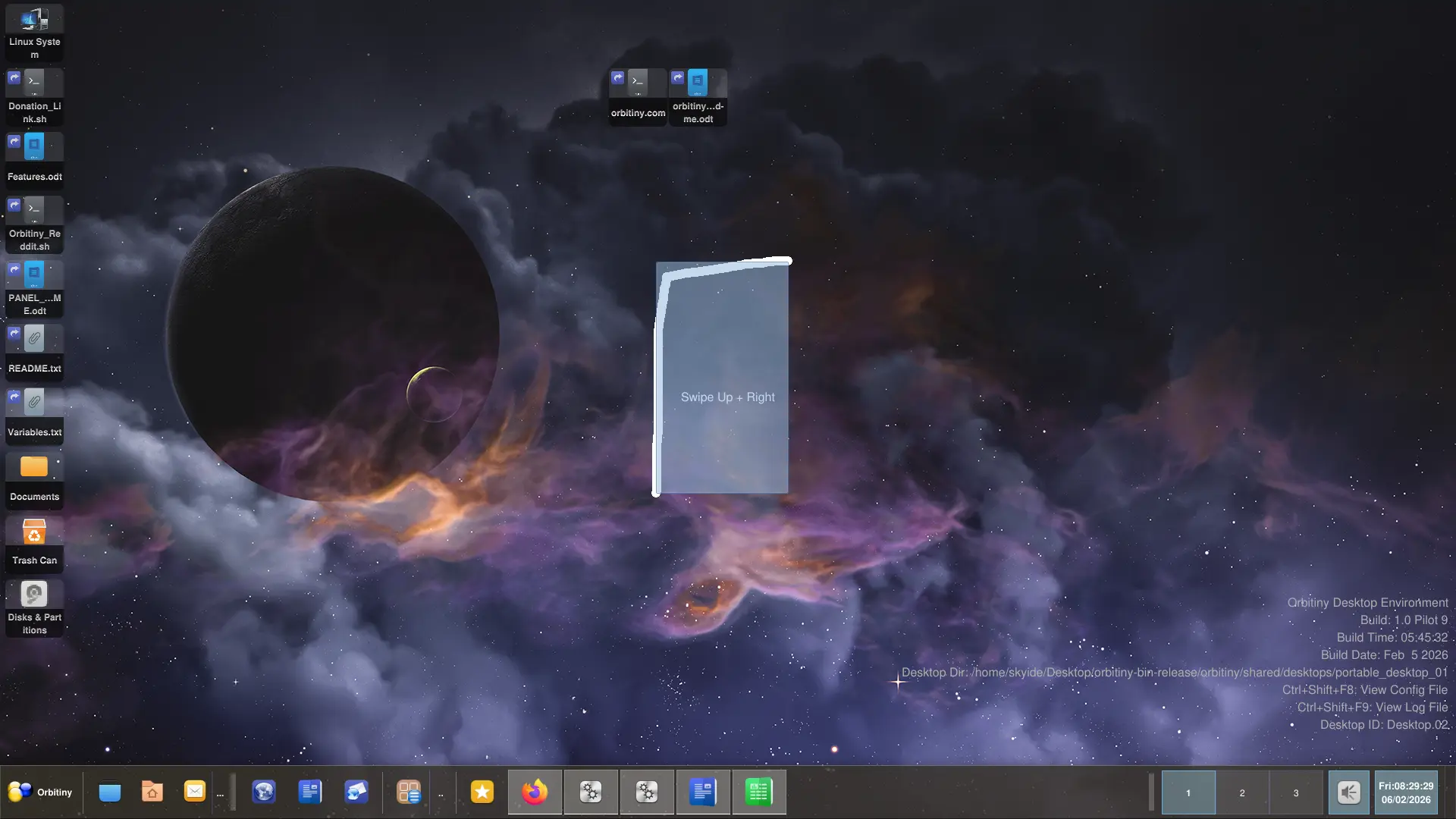
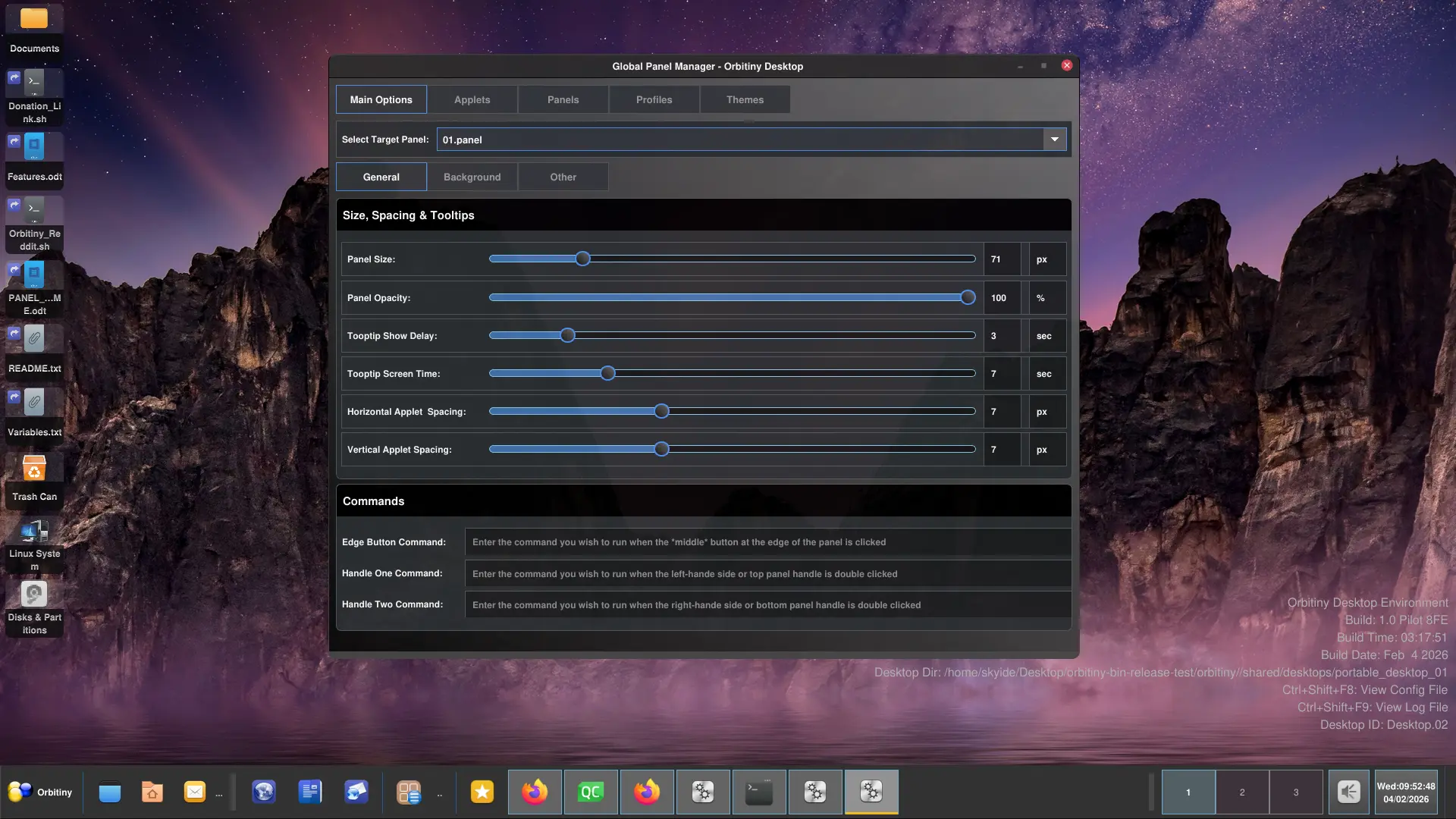
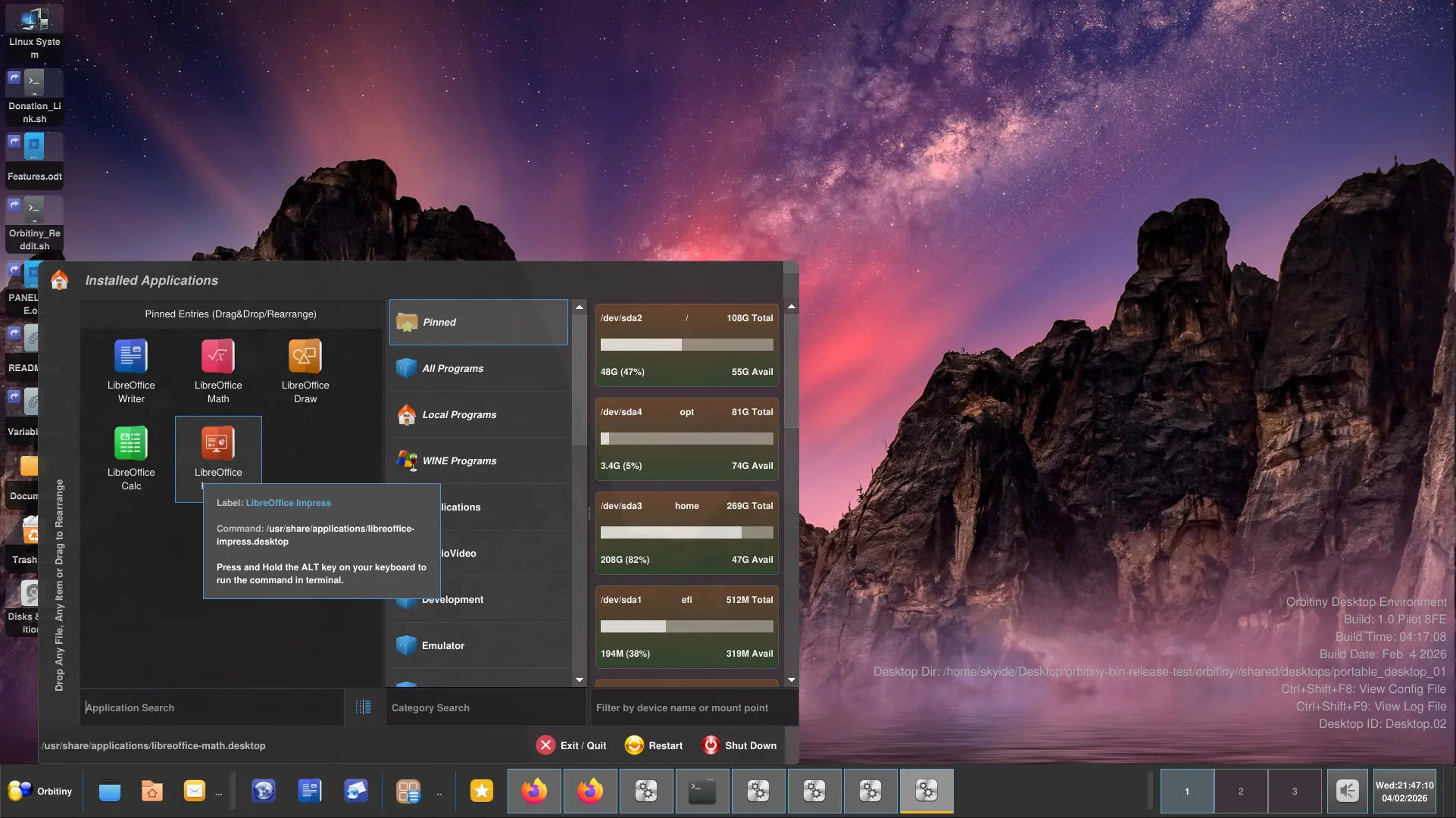
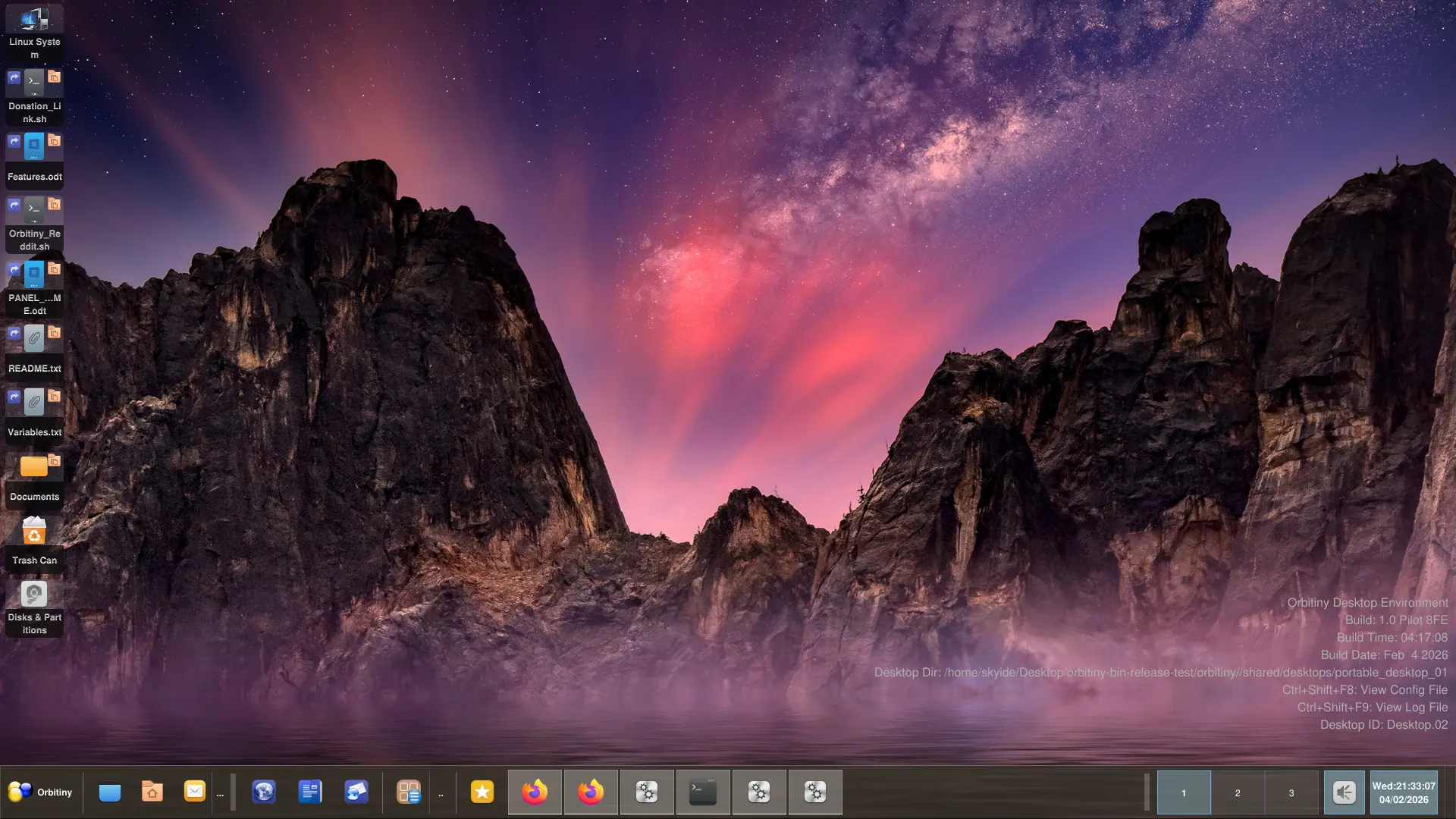
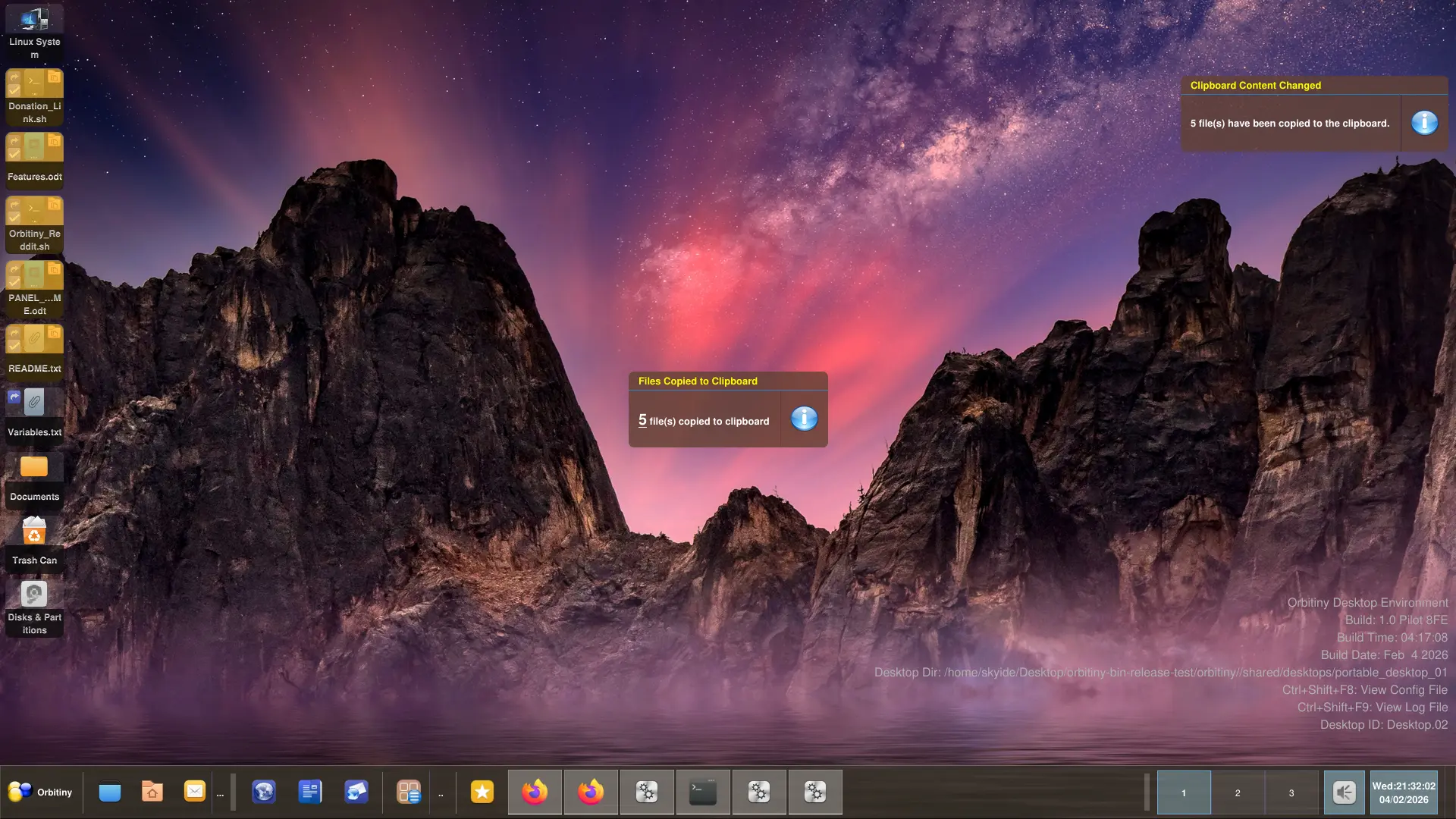
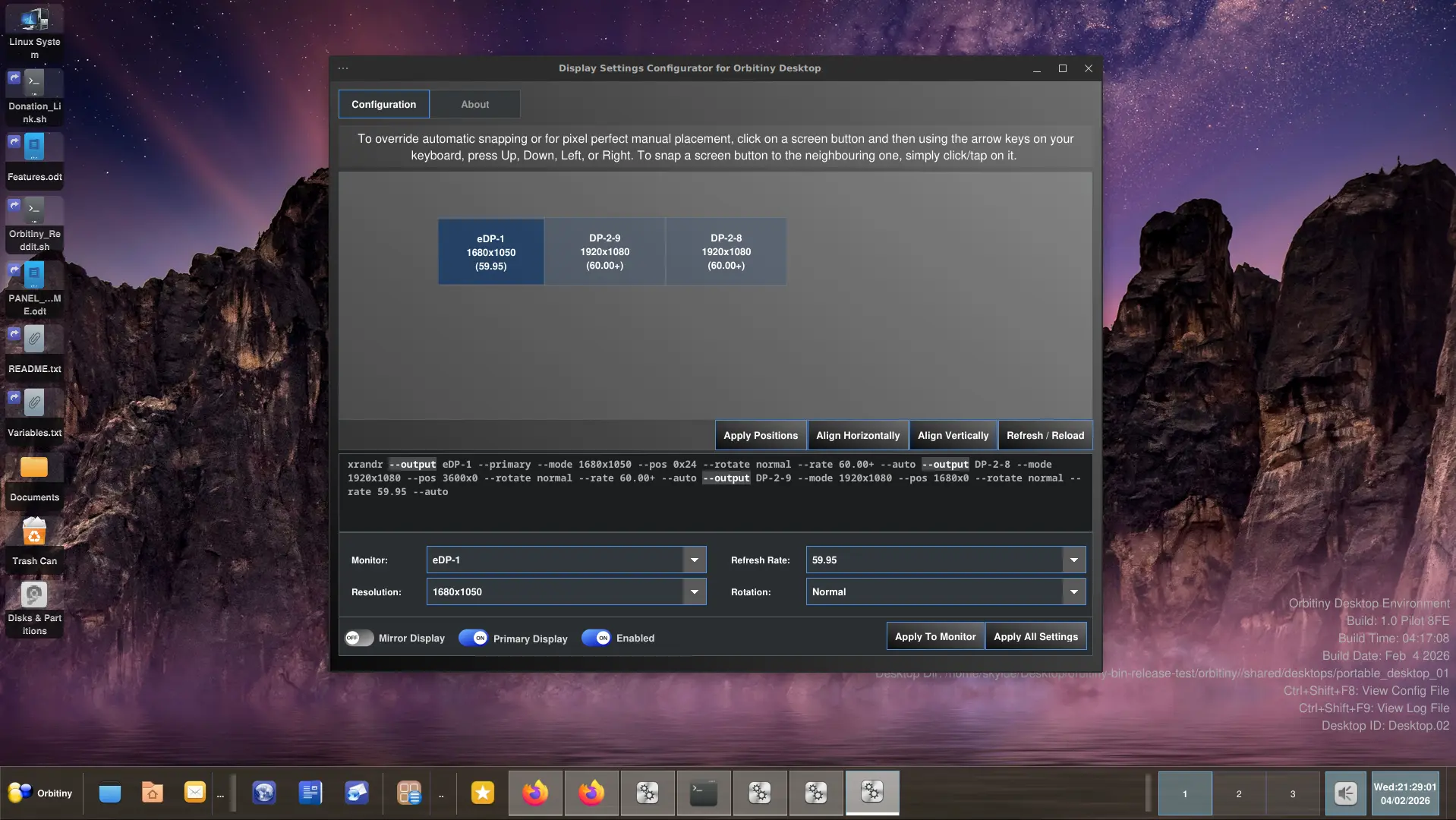
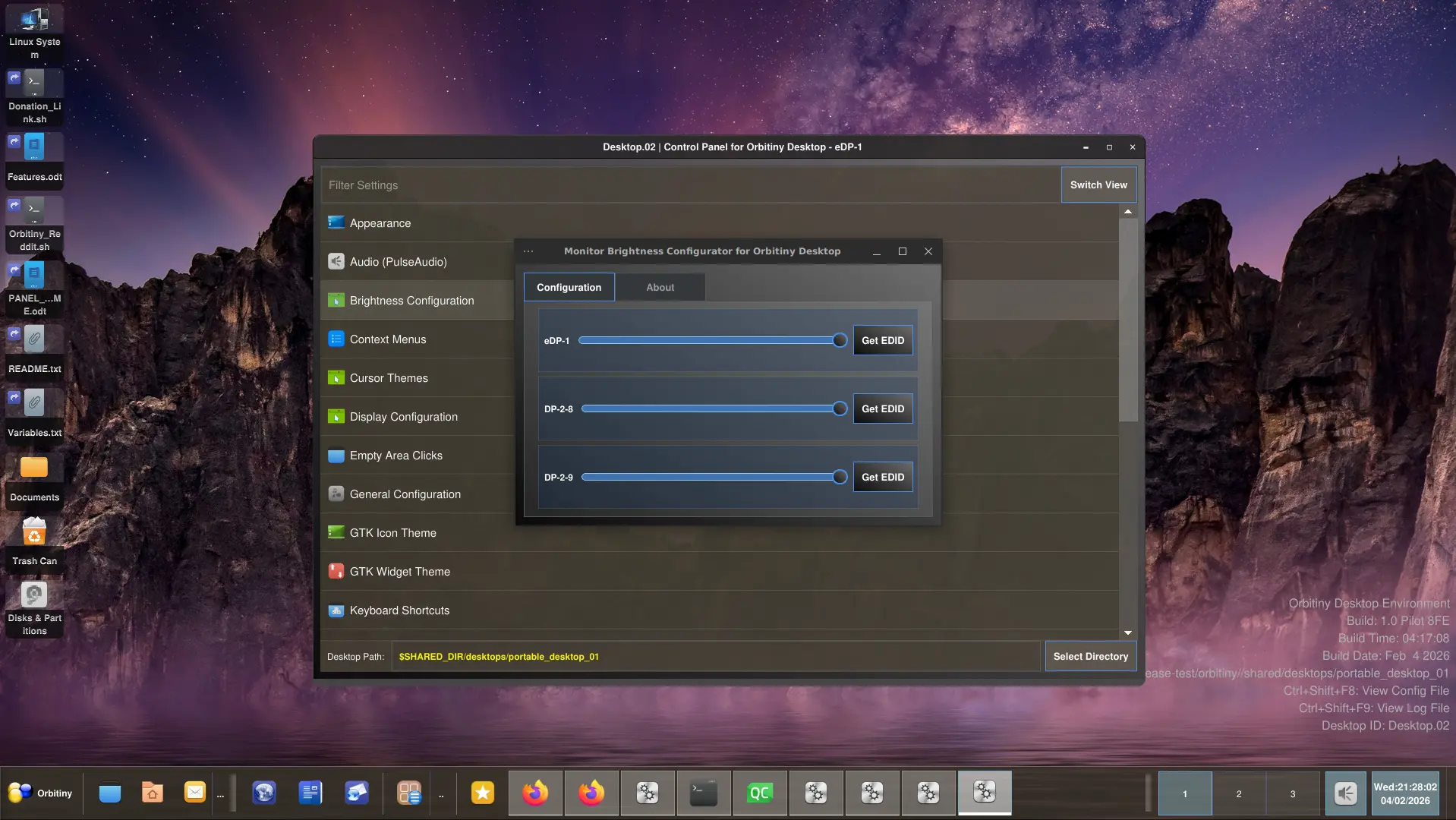
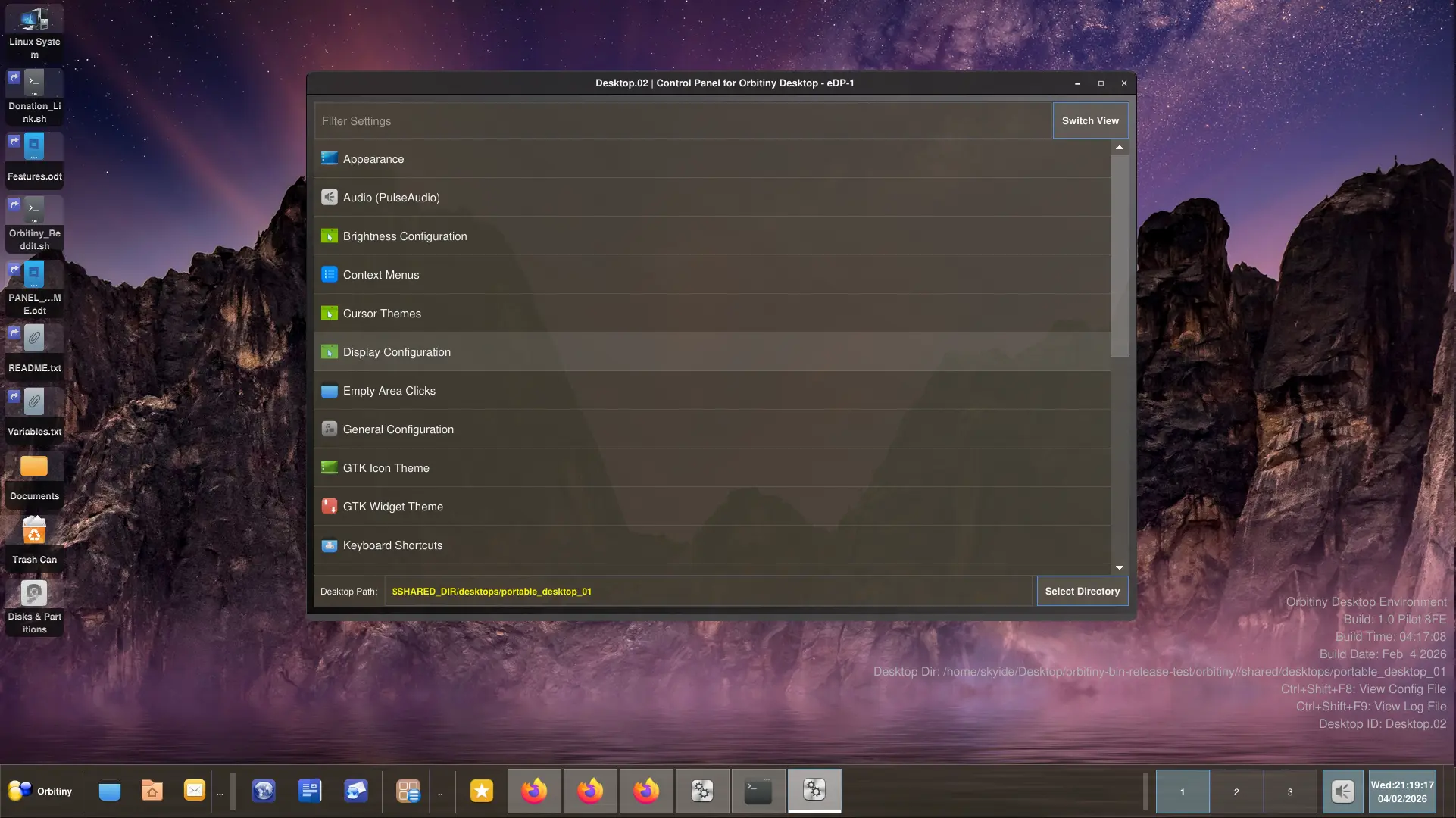
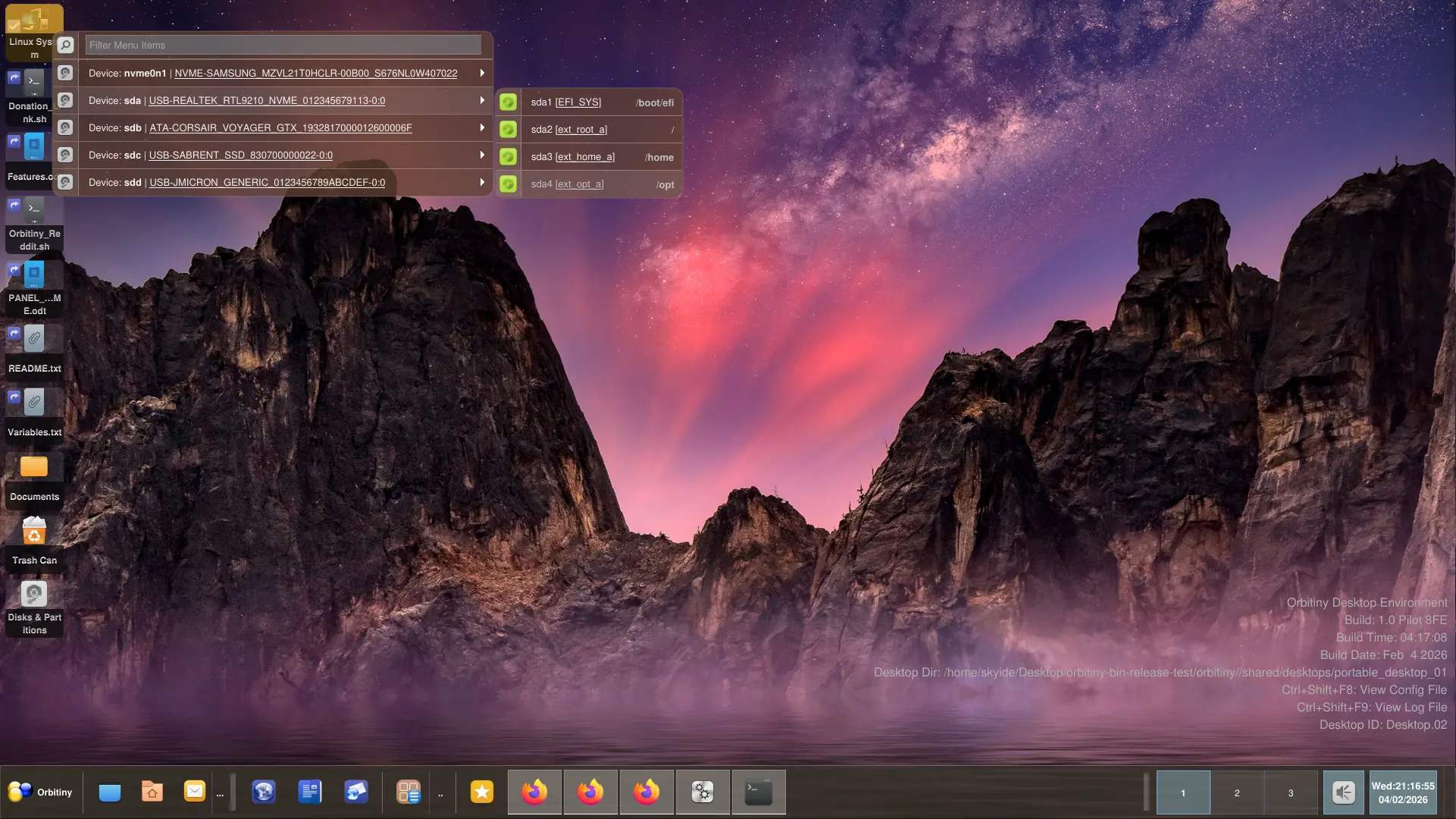


[Update: April 05, 2026 – The Upcoming Pilot 11 is getting a major UI overhaul, see here for more details]. Built from the ground up over the course of 9 years (and counting) in Qt and coded in C++, Orbitiny Desktop is a new and innovative desktop environment for X11 based Linux operating systems, bringing you exclusive features and functionalities unavailable in other desktop environments.
Features such as Desktop Gestures (draw a pattern on an empty area of the desktop to perform an action), Icon Emblems for files on the clipboard (cut and copied), Icon Emblems for new or modified files, Icon Emblems for empty files and directories, Multi-Paste Support, (pasting to multiple selected directories), Paste to File (right-click a file and select Paste to File), Image Pasting (Have in image on the clipboard? Just right click anywhere and select Paste Image), File join (drag a file over another one to join the files), Dedicated Icons for Mounted and User Account Directories, Custom Desktop Directories (set any folder to be used as you desktop folder), Individual Desktop Directory per Monitor, Individual Desktop Directory per Virtual Desktop (switching to another virtual desktop switches desktop directories too) are some of them.
All of these features are exclusive to Orbitiny, and if you see anyone else doing the same thing, just know that you first saw it in Orbitiny Desktop, a desktop that focuses on real innovation, functionality, features, and extensibility while preserving traditional and familiar appearance you’d expect to see from a desktop.
Using Orbitiny Desktop feels very much at home. It doesn’t feel awkward and unfamiliar like some desktops today + you get all these extra functions that you don’t get to see in other desktops.
Due to its superior portable and modular design, Orbitiny can be run in portable mode (no installation required) or can be installed to any directory. To run it in portable mode, just launch the start-orbitiny script. In portable mode, all the settings will be saved in the directory the start-orbitiny script is in. You can then copy this folder to a USB stick, take it with you, go to another Linux computer and launch the script again and all the settings and configurations will still be there.
Want to install it system-wide and be accessible from your Display Manager’s menu? No problem! Just run the graphical install-orbitiny script using sudo. As a system-wide desktop (non-portable mode), the settings will be saved to $HOME/.config/orbitiny for each user.
Nearly all components are modular, this means if one component crashes, it won’t take the whole desktop down.
Orbitiny Desktop is not a derivative of any other desktop environment. It is its own independent code developed from scratch over the course of 9 years (and counting)! It started with a blank window and developed into a fully featured and innovative desktop with 48 external components and several more integrated applications such as the built-in Clipboard Manager (which by the way also has features not found in other Clipboard Managers), the Dashboard and more.
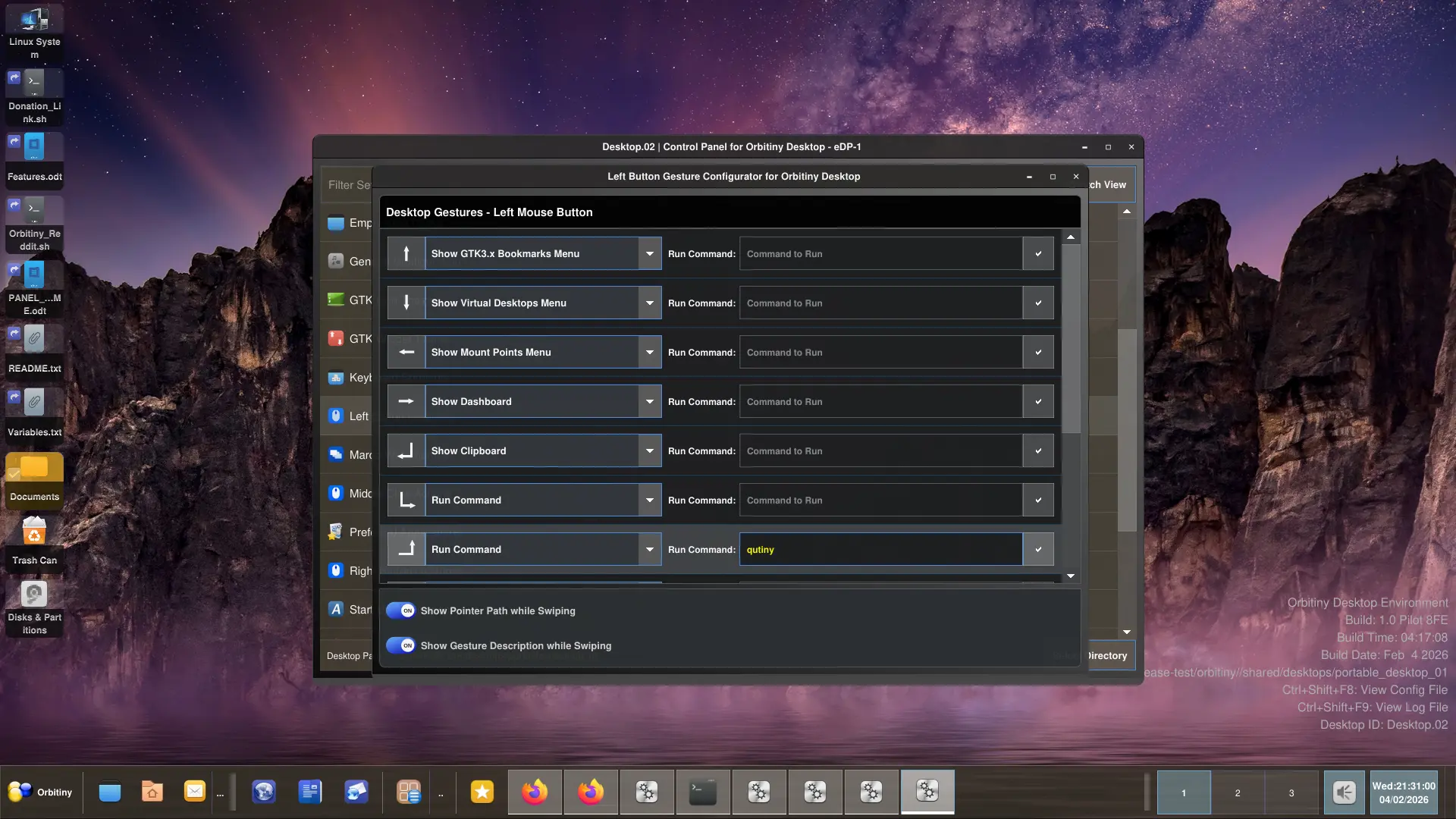
Orbitiny Desktop supports desktop gestures and this means you can draw on an empty area on the desktop to perform an action (akin to web browser gestures).
Orbitiny Desktop comes with a Device Manager that can disable / enable devices by right-clicking the device and selecting Disable / Enable and all that without black-listing the whole kernel module so it targets the selected device only and nothing more.
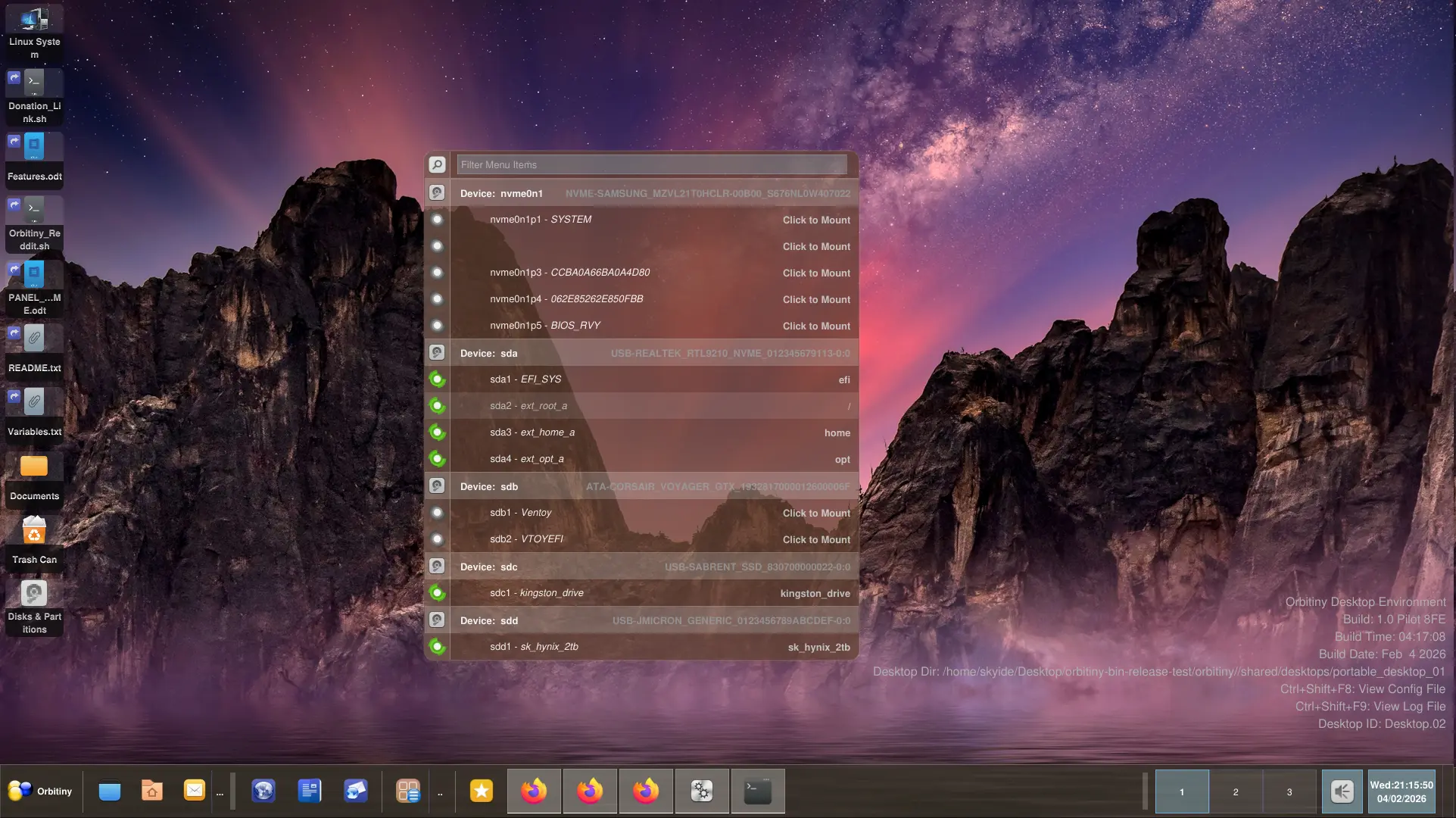
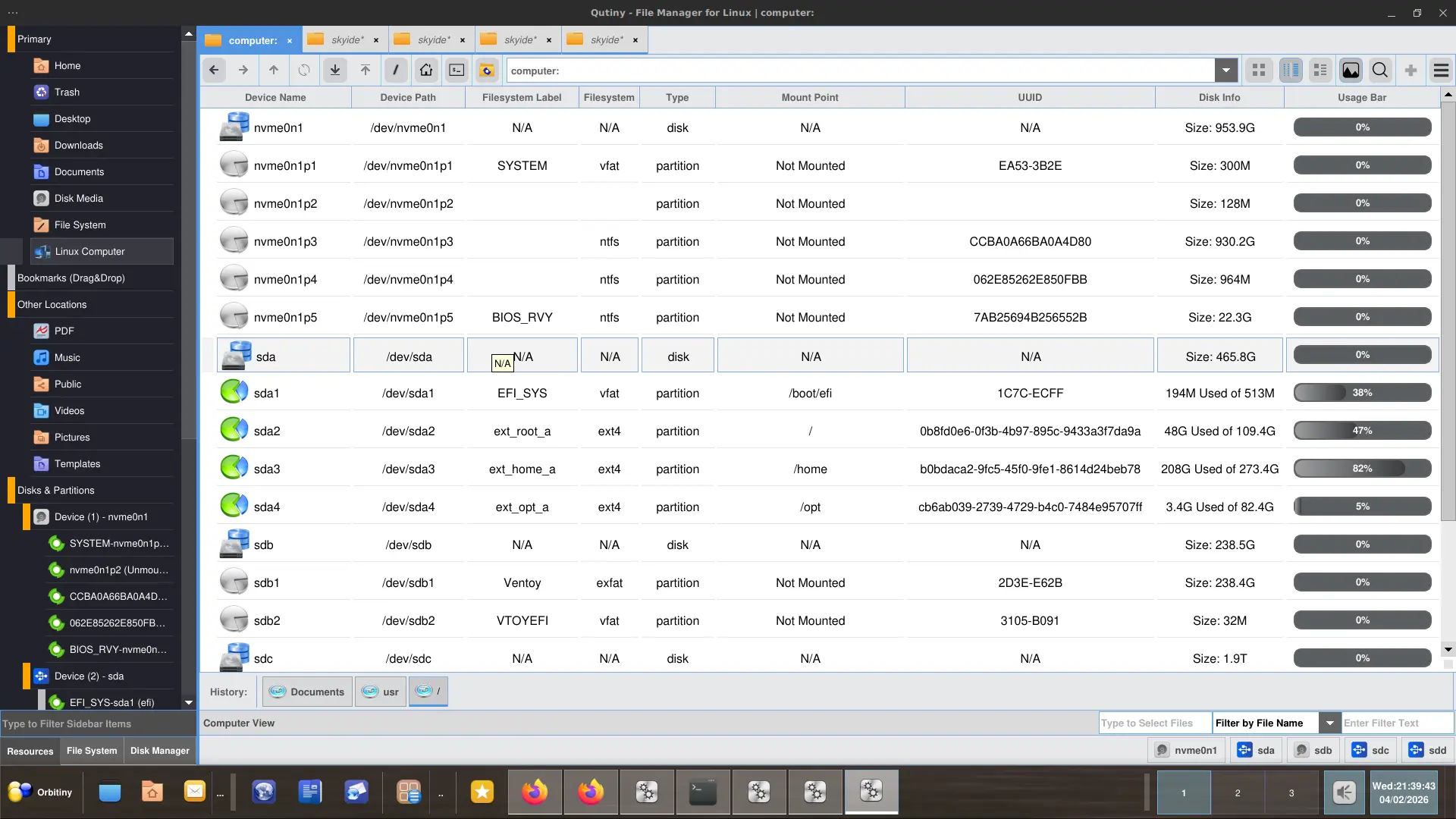
It has its own fully featured and innovative file manager, a fully featured desktop panel with 18 plugins with full and natural Drag&Drop support, a dedicated search utility, one integrated with the file manager while the other is a stand-alone one, a clipboard manager, hot-plug detection with desktop notifications and so much more.
So what is so special and innovative in Orbitiny Desktop? I don’t know where to start, here are some of the features that sets it apart from other DEs (I’ve probably missed some).
- Desktop Gestures – On the blank area of the desktop, draw a gesture pattern (like in a web browser) but on the desktop to perform an action, like for example, launch a custom command or use one of the built-in supported actions available to choose from. Up to 12 gestures are supported for both left and right mouse buttons, 12 per button + additional configurations for middle clicks. Gestures are drawn on the blank area of the desktop and they work regardless whether icons are turned off or on.
- Icon Emblems – When a file is cut or copied to the clipboard, a little icon emblem with a “cut” or “copy” symbol is attached to the icon to indicate that the file is on the clipboard, either copied or cut. If the file is a directory, and contents of that directory change (like a file is created or deleted), an emblem is attached to let you know that the folder contents have changed. This has also been expanded to non-directories too as of 07-02-2025.
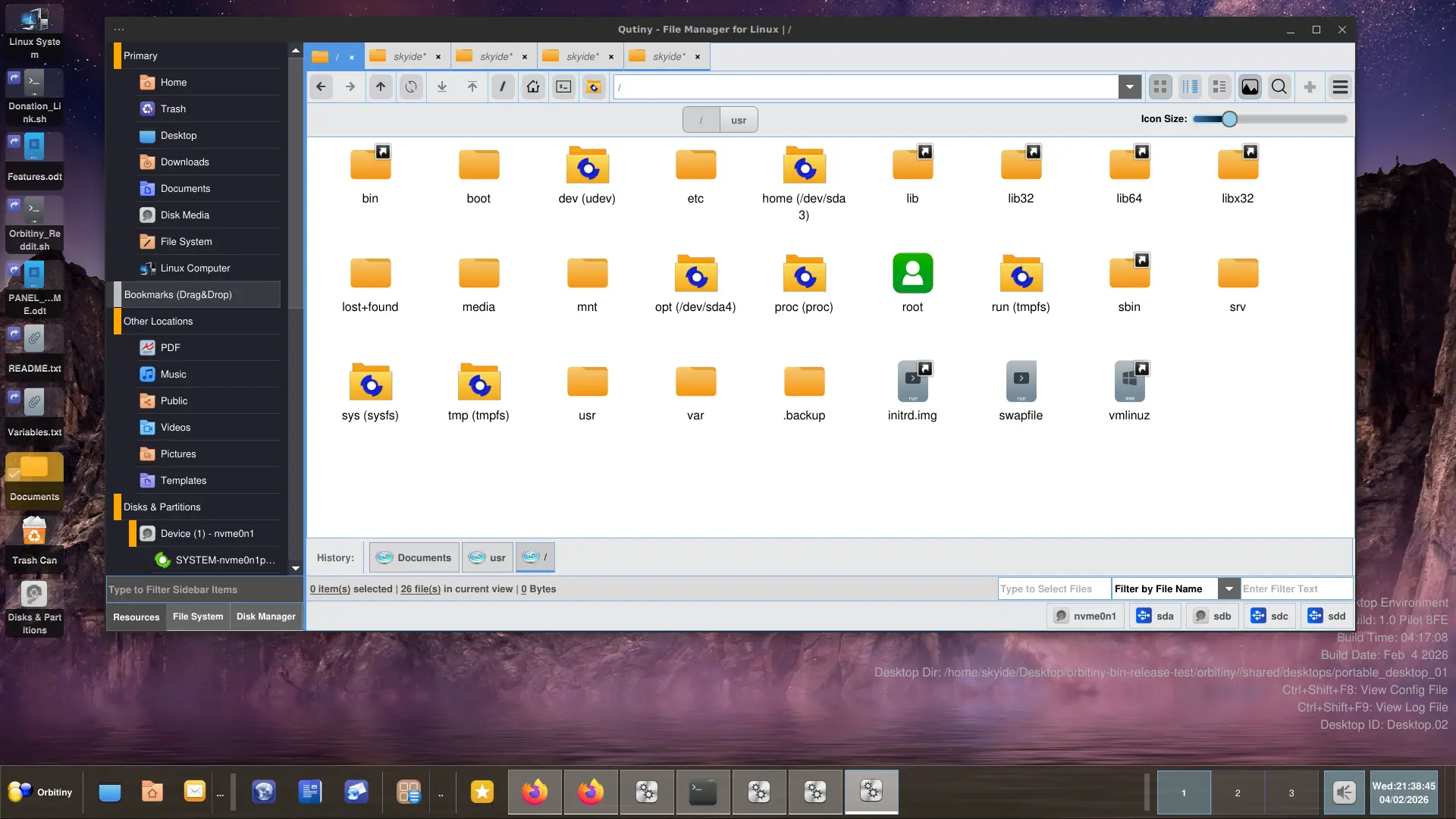
- Mount Point Directory Icons – Special icons to mount point directories. This way, you can easily distinguish mount points from normal directories and the associated device name of the mount point is appened to the caption of the mounted directory’s file icon. E.g: If /dev/sdc1 is mounted on “/mnt/my_point” and you navigate to /mnt, Qutiny file manager will append “(/dev/sdc1)” to the mounted directory’s icon caption. So, for example, instead of seeing a file icon named “my_mount_point” when browsing to /mnt, you will see “my_mount_point (/dev/sdc1)” instead if “my_mount_point” was associated with /dev/sdc1. Not only that, it also shows a different icon. This gives you a visual indication that the directory you are looking at is a mount point and that the mounted directory’s associated device is /dev/sdc1. See screenshot for more details. So, you don’t have to use a terminal to find out what the associated device of a specific mount point is. This works anywhere in the file system with any mount point anywhere in the filesystem.
- User Home Directory Icons – User home directories (any user) also have dedicated icons. This is similar to the dedicated icons for mount points. So let’s say you are userA using PC1 and you are using Qutiny as a file manager and you navigate to /home. Each of the users’ home dir will have a dedicated icon so you won’t have the standard directory icons used by your icon theme. This works regardless of what the location, it doesn’t have to be /home. It is not hard coded to “/home“.
- File Join – Drag a text file over another text file to add the contents of the dragged file to the target file.
- Paste to File – If there is ASCII content on the clipboard, right click the files and select “Paste to File” and the content will be appended to the end of the file. Prepending is also available. If the selected file is a folder, the text content will be pasted into that folder and a file gets generated automatically. There is also image pasting. If the clipboard has an image, right click + paste will generate an image file.
- Paste to Image – An option in the right-click context menus. This feature appends (vertically) the clipboard pixmap or the file path if it is an image file to the one selected. So it’s like the Paste to File option where text context from the clipboard gets pasted into the file but now this extended and applied to images as well.
- Multi Paste – Select a set of folders on the desktop and click “Paste” and the content from the clipboard will be pasted to all of the selected folders. Text content will also be pasted automatically by generating a unique file name and a file (works with images too).
- Custom Desktop Directories – Choose any folder and use it as a desktop directory. It doesn’t have to be $HOME/Desktop.
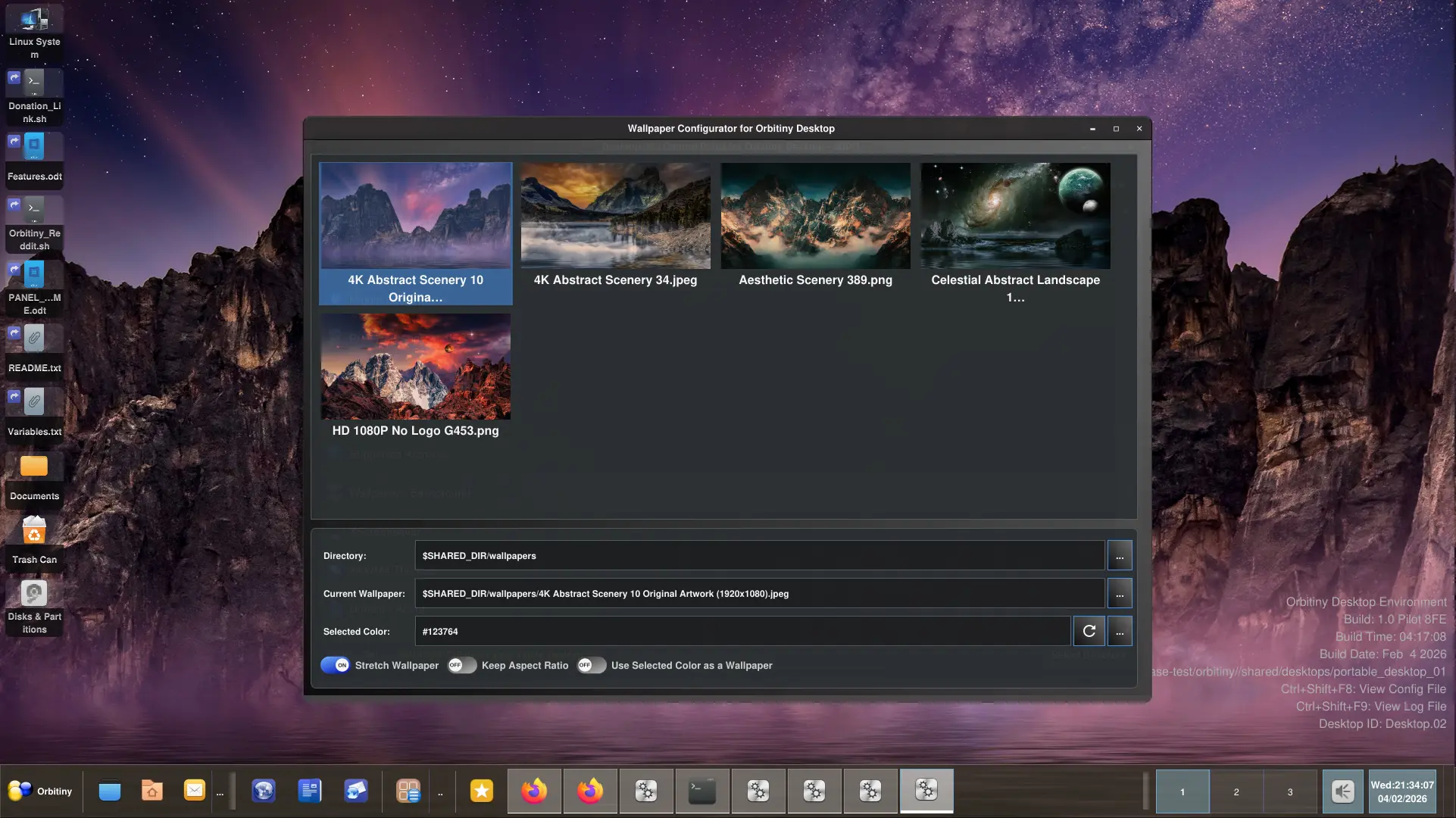
- Independent Desktops – Each screen is a separate desktop so on one screen you can have one desktop with its own set of icons (by selecting a desktop directory of your choice) and on another screen, you can have another desktop with its own icon by selecting a different desktop folder. Of course, works with wallpapers too. So it’s like two different computers running on two screens
- Add to Clipboard – An option in the right-click context menus. This feature appends the selected file path(s) to the existing ones on the clipboard. If no files are set on the clipboard, it will set them. So, to make it clear, it does *not* replace the existing files already set on the clipboard. That one is done when you select “Copy”. “Add to Clipboard” *appends* additional files paths to the clipboard to the current ones and then when you select “Paste“, it just pastes all of them. So unlike (very annoying) when you select “Copy” which overwrites previous file paths, “Add to Clipboard” appends the file paths. If no file paths exist, it will set them.
- Paste Basket + Paste to Basket option in the right-click context menus. It adds the selected file path(s) to the Paste Basket. The Paste Basket is a set of destination directories. When you select “Paste to Paste Basket“, the file paths currently on the clipboard will be pasted to each of those directories. If you have selected a mix of directories and non directories only the directories will be added to the “Paste Basket“.
- Image Join – Drag one (or more) image files onto another image file and you get an image join menu: “Join Images Vertically” and “Join Images Horizontally”. Each of the dragged image file will be appended to the target file.
- Beautiful and Non-Blocking Custom Context Menus – Non-blocking means your traditional shortcuts you have assigned in X11, will continue to work when a context menu is open, the shortcut won’t get caught/blocked by it like it is the case with many other applications that use standard context menus. The context menus are custom made, not using the QMenu component.
- Open Multiple Terminals – Select several folders, right click and select Open Terminal and a new terminal will open for all of the selected folders.
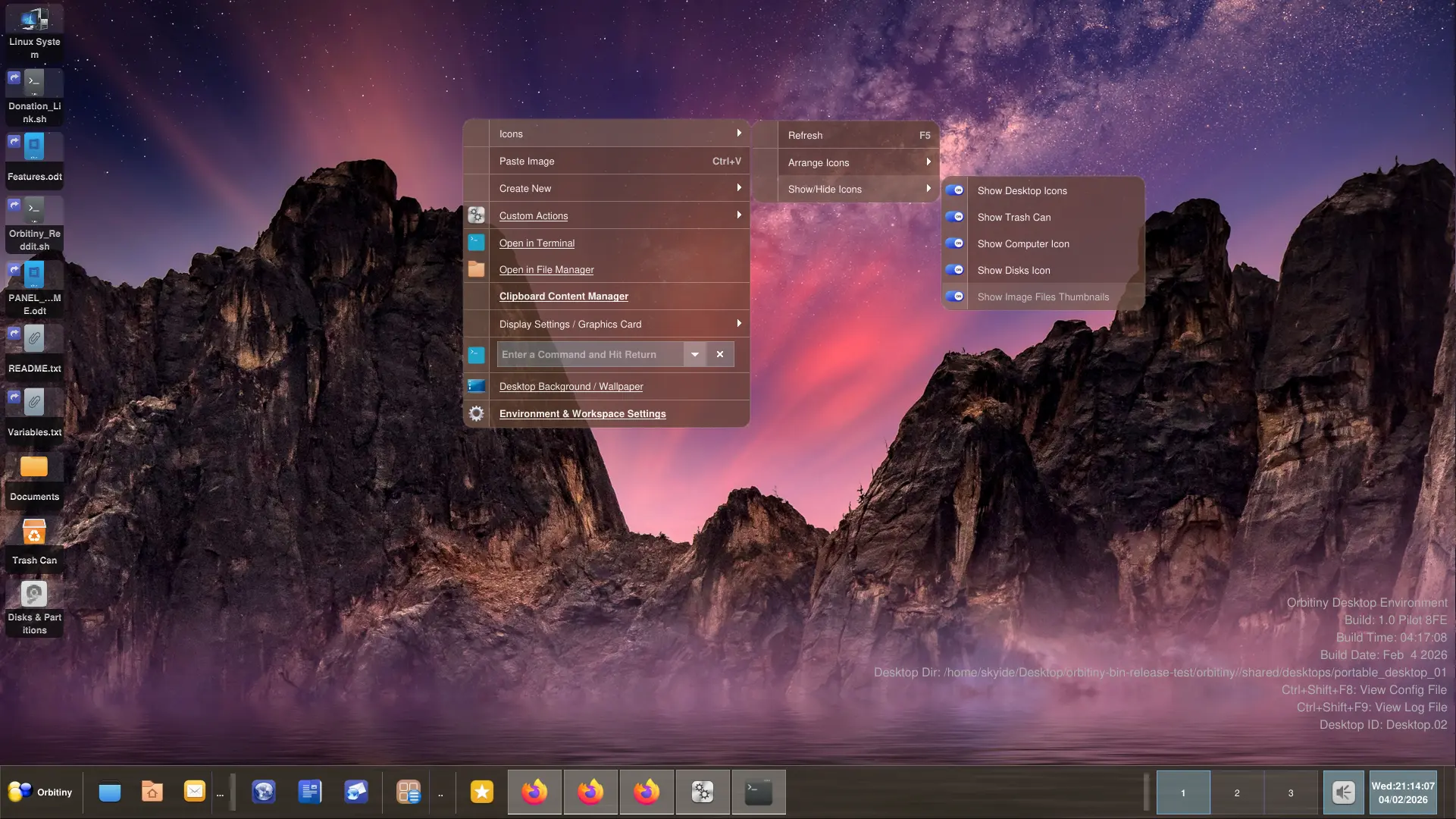
- Built-in Run Drop-down Box (Combo Box) in the context menus allows you to run a command against the selected files (highly experimental and new).
- Multi Profile Support on the Panel – Right click the edge button on the panel and create a new profile or select one of the previously created ones to get a new configuration / sets of applets. You can switch between profiles like you switch different TV channels.
- Full Drag&Support on the Panel – Drop any file/folder from the desktop or a file manager onto the panel to create an icon for it or drag and re-arrange any applet, any icon on the panel. No special “Edit Mode” is required. Just grab the applet on the panel or a file from the desktop / file manager and drop it straight onto the panel and an icon for it gets created or the dragged one gets re-positioned. So, to be clear, launch Qutiny (the Orbitiny Desktop file manager) or Thunar, Nemo, Dolphin or whatever and drag any file from it onto the panel, either to the Quick Launch or anywhere else on the panel and a file icon gets created.
-
Panel Resizing – The panel can be resized, and placed on any corner of the screen by dragging its handle or you can put it on the middle of the screen if you wish, or turn it into a dock with auto-resizing, or a deskbar that takes the width or the height of the screen. It’s highly configurable.
- A Comprehensive Start Menu / Application Launcher applet and again with full Drag&Drop support. You can re-arrange icons within the menu, from / in the menu, and there is designated area for a sidebar too on the menu which you can also attach / remove icons from and in to it.
- Custom Actions – Perform custom actions on the selected files. Commands can be edited in the configuration file.
- Directory Browser inside the right-click context menu.
- Dashboard Window – click any edge on the desktop to launch a dashboard window that shows you running tasks + installed applications. Search/Filter is available. At the moment, the running applications only work with X11.
- Portable Mode – All the files needed to run along with the applications it comes with can be downloaded to a USB flash drive (or a folder) along with the settings so you can just take the whole folder with you and run it on any Linux computer and the settings will remain the same so the settings are also portable.
- Built-in WINE + DOSBOX support. All the components mentioned here support both WINE and DOSBOX. This means, if you drop a Windows or DOS exe onto the panel and click on it to launch it or double click it from the file manager or the desktop, its path will be handed over to either WINE or DOSBOX to run it.
- MAFF Files Support – Remember this? Well, if you double click on a MAFF file, it will extract it in the /tmp dir and launch it for you, same as if you are clicking an HTML file.
- Multi-command Support – Some of the panel applets such as the launcher applet, quick launch and the drawer menu along with its items allow you to add two commands per launcher. One for left-click and another one for middle-click.
- Multi-content Search Support in File Manager – The file manager supports searching for content inside files but it also gives you an option to search for an additional word on the same line the match is found.
- Right-Click + Zoom – To increase / decrease the icon size, along the standard CTRL + Wheel to zoom in / out, you can also click and hold the right-hand mouse button and use the scroll wheel – up/down.
- Double-Clicking a Blank Desktop Area Run a preset gesture or an individual command when the blank area of the desktop is clicked. Hold-Down Right-Hand Mouse Button and Double Click – Run a preset gesture or an individual command.